01
Upload references
Choose one image for a direct edit or up to three images for a fused concept.
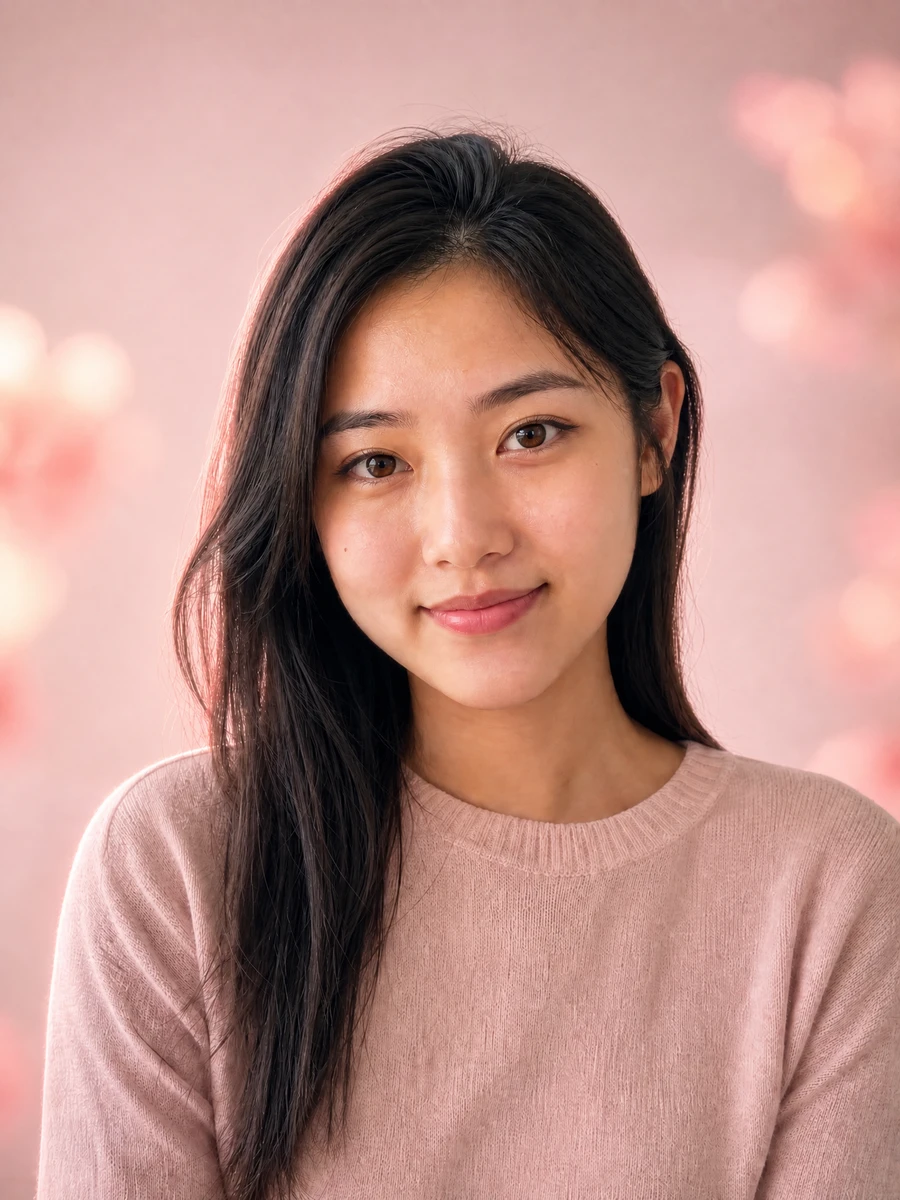
Keep the important parts of your source image while Image to Image AI guides the model toward a new result.
JPEG, PNG, or WebP up to 20 MB
Prompt examples
Precise natural-language edits for a single image.
Complete the required inputs, then start when you are ready.
Creative workflows
Start with a source image, choose the Image to Image AI workflow that matches your goal, and describe the details the new version should preserve.
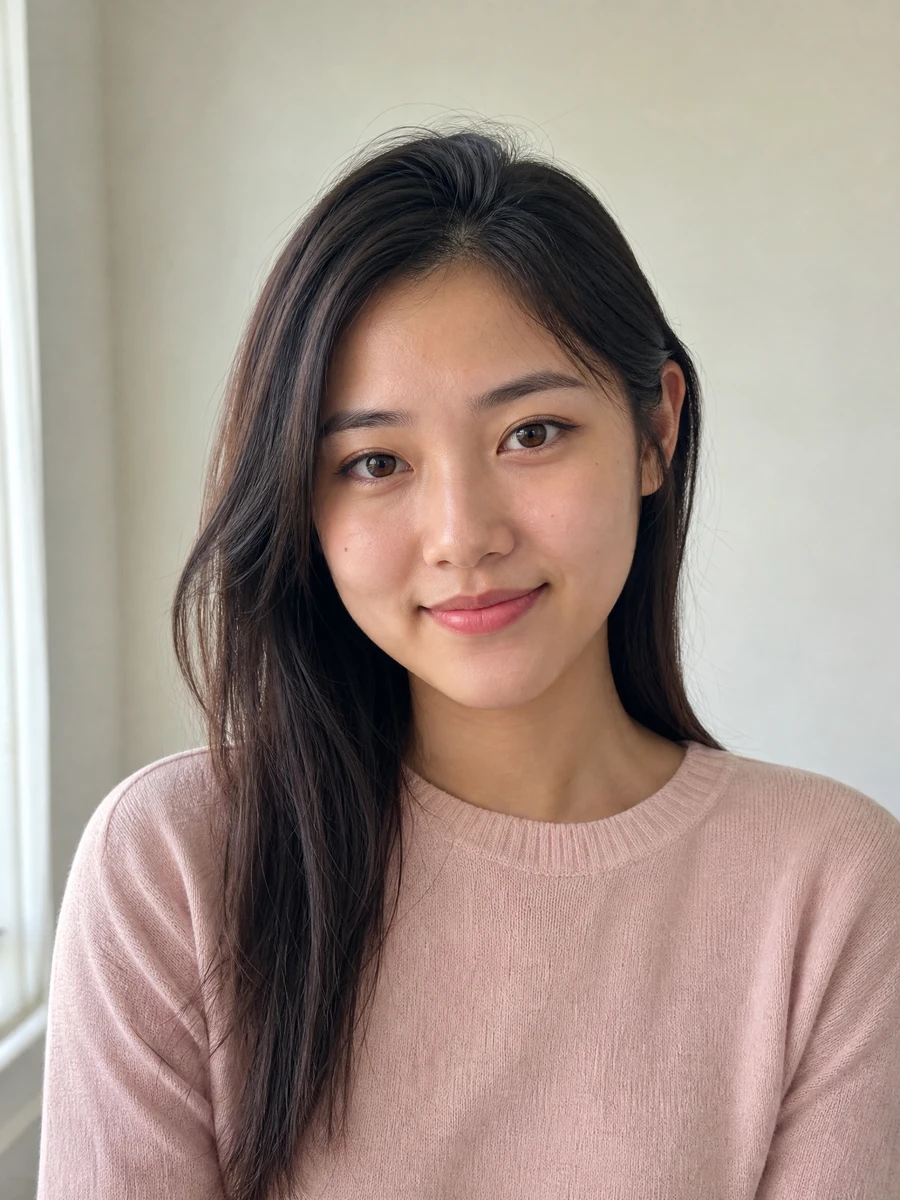
Use Image to Image AI to guide a new setting, lighting treatment, or presentation while keeping the important facial and subject cues.
Creative workflows
Start with a source image, choose the Image to Image AI workflow that matches your goal, and describe the details the new version should preserve.
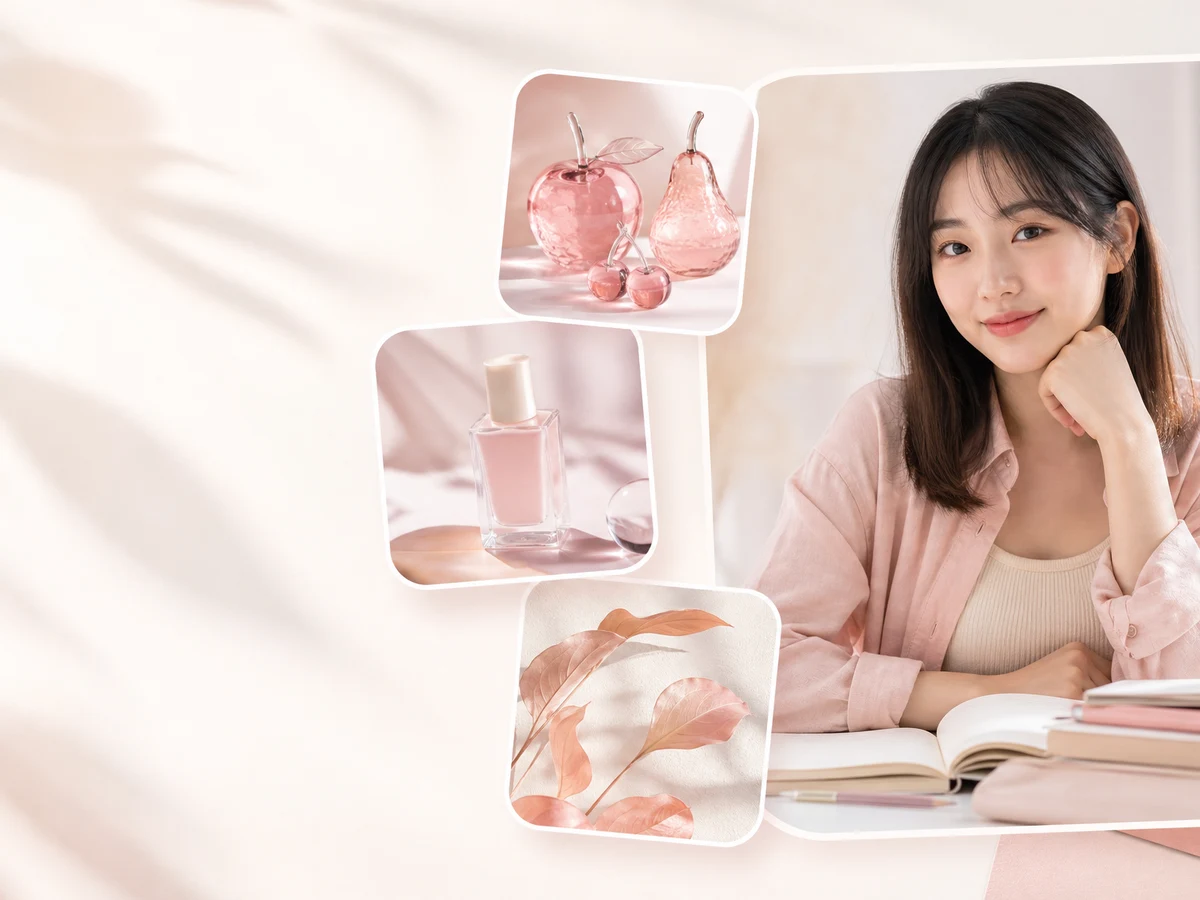
Keep your face and pose recognizable while trying new outfits, palettes, and styling ideas.
Use a visual reference with Image to Image AI to compare makeup, lighting, color palettes, and editorial moods.
How it works
01
Choose one image for a direct edit or up to three images for a fused concept.
02
Explain what Image to Image AI should change, what must stay recognizable, and how references should be combined.
03
Start the task, compare the result with the sources, and download or refine it.
01
Upload references
02
Describe the transformation
03
Generate and review
Frequently asked questions
Image to Image AI uses one or more source images to guide a new visual result based on your prompt.
Upload a reference, describe the change, and create a new version while preserving the details that matter.
Try it free